Upsells for vacation rentalsThe offer goes out on its own. The thread is the one the guest already has.
Booking Boosters watch the same calendar your operations run on. When the night beside a stay is open, or the day has no turnover, the guest gets an early check-in, late checkout or gap-night offer in their existing conversation, on your wording, at your price, at the hour you choose. Your team confirms the yes.
Four offer types, each with its own switch and listing scope. Preview before you arm it.
Ridge View · sent 5:02 PM, the evening before checkout
Hey Anna, if you’d like a little extra time on Tuesday we can offer late checkout until 2:00 PM for $50. Just let us know!Early check-in, late checkout, and the night on either side
Each offer type has its own switch, its own listings, its own timing and its own message. Early check-in and late checkout carry a fee you write and the earliest or latest time you allow. The two gap-night offers price the single open night next to the stay from that property’s live nightly rate, less a discount you set.
- All listings or a hand-picked set, per offer type
- Templates with the guest’s first name, the property, the fee or price and your check-in and checkout times
- A fee per company for early and late; gap nights follow each property’s rate
- Preview offers shows what would go out in the next 48 hours, and sends nothing
Early check-in
Your fee and earliest arrival time. Skipped on a same-day turnover.
Late checkout
Your fee and latest departure time. Skipped when the next guest arrives that day.
Gap night before arrival
The open night before the stay, at the nightly rate minus your discount.
Gap night after checkout
The open night after the stay, at the nightly rate minus your discount.
The evening before, when the calendar says yes
Boosters check upcoming stays every 15 minutes and send each offer once, on the evening before the day in question, at or after the send hour you set, in your time zone. Early check-in and late checkout are skipped on a same-day turnover and unless the night beside the stay is open on the calendar. Gap-night offers need exactly one open night between this stay and the next.
- Confirmed stays only; inquiries, cancellations and owner stays never get an offer
- One offer per stay per type, so a guest is never asked twice
- Unanswered offers expire on their own once the day has passed
- Delivered as a message in the guest’s thread on connected channels and email-based stays; a stay with no thread gets no offer
A clear no closes itself. A yes waits for you.
Replies within 48 hours are read against the offer. A clear no closes it. A likely yes, or a question about the offer, is flagged on the Boosters page so your team can confirm the details and the payment with the guest. A reply about something else leaves the offer open and lands in the inbox like any message. Nothing is accepted on the guest’s behalf.
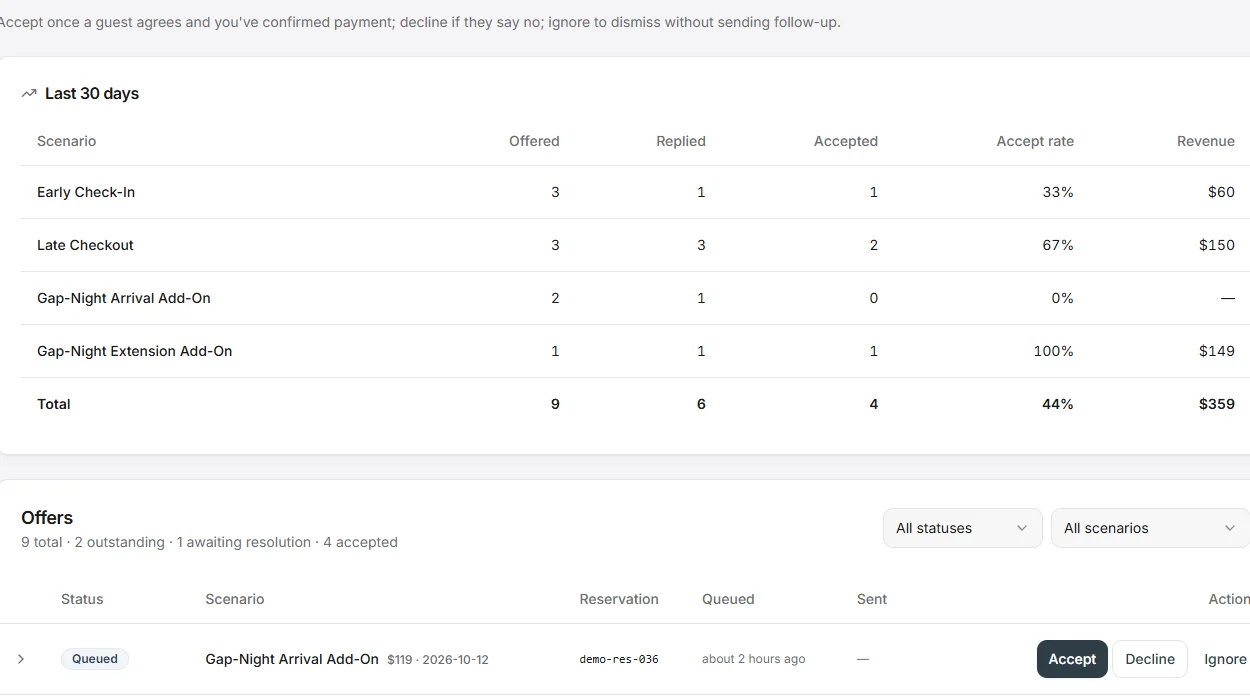
- Accept, Decline or Ignore from the Boosters page, with a note
- Type the amount on an accepted offer and it counts on the dashboard
- Last 30 days per offer type: offered, replied, accepted, accept rate and revenue
- Booster messages are labelled in the guest touchpoints report
A charge on the stay, collected like any balance
When a guest takes an offer, add the charge to the reservation from the drawer: named for the upsell, taxed on the stay’s own channel if taxable, and routed to the owner, to you, or split, following the property fee of the same name. The balance rises and you collect it with a pay link or a card, into your own processor account. That charge is what reaches the ledger and the owner statement.
- Late checkout, early check-in or an extra night, as a line on the stay
- Owner, manager or split routing, so upsell revenue lands where you decide
- Pay link by email or text, or a card over the phone
- No VacayOps commission on upsells
From an open night to a paid extra
- 1
Set the offers
Settings → Marketing → Boosters. Switch on the types you want, pick listings, write the templates, set the fees, discount and send hour.
- 2
Preview
See which stays in the next 48 hours would get each offer and how the message reads. Nothing sends.
- 3
Arm it
Offers go out on the evening before, when the calendar allows, in the guest’s existing thread.
- 4
The guest replies
A no closes the offer. A yes or a question is flagged for your team.
- 5
Confirm and collect
Confirm with the guest, add the charge to the stay, send the pay link, and mark the offer accepted with the amount.
What Booking Boosters cover
Part of the Full Platform. No commission on upsells.
Early check-in
Your fee and earliest time, skipped on same-day turnovers.
Late checkout
Your fee and latest time, skipped when the next guest arrives that day.
Gap nights
The open night before or after, at the nightly rate minus your discount.
Your hour, your time zone
Offers send on the evening before, at or after the hour you set.
In the thread
Delivered in the guest’s existing conversation; a clear no closes itself.
Boosters dashboard
Flagged replies to resolve, and 30 days of offered, accepted and revenue.
Upsells: questions
- What is a Booking Booster?
- An offer VacayOps sends to a guest on its own, in the conversation they already have with you, when the calendar allows it: early check-in, late checkout, the open night before their arrival, or the open night after their checkout. You set the wording, the price, the send hour and which listings each offer covers.
- Does the guest book or pay with one tap?
- No. The guest replies in the thread. A clear no closes the offer on its own. A likely yes, or a question, is flagged on the Boosters page for your team, who confirm it with the guest, collect payment and mark the offer accepted with the amount. Nothing changes on the reservation, the calendar or the cleaning schedule until your team changes it.
- How is the price set?
- Early check-in and late checkout carry one fee each for your company, written the way you want it to read in the message, with the earliest arrival and latest departure times you allow. Gap nights are priced from that property’s live nightly rate minus a discount you set, so the offer follows each property’s rate.
- When do offers go out, and which stays get one?
- Confirmed stays only, once per offer type, on the evening before the day in question, at or after the send hour you set, in your time zone. Early check-in and late checkout are skipped on a same-day turnover and when the night next to the stay is already booked or blocked. Gap-night offers go out when there is a single open night between this stay and the next one.
- Which channels does it work on?
- Any stay whose guest conversation has a delivery channel: connected channel threads and email-based channel stays. A stay with no message thread, such as a manual booking without an email, gets no offer.
- What about Airbnb and other channel rules?
- Offers ride the same thread as the rest of your guest messages, so each channel’s messaging and payment rules apply to them. Keep the wording and how you collect payment within those rules, and ask your counsel if you are unsure. VacayOps does not check an offer against a channel’s policy for you.
- How do I collect the money and get it on the owner statement?
- Add a charge to the stay from the reservation drawer, named for the upsell, taxed on the stay’s own channel if taxable and routed to the owner, to you or split. The guest’s balance rises by that amount and you collect it with a pay link or a card. That charge is what reaches the ledger and the statement; the figure on the Boosters page is for the dashboard.
- Can I see what would go out before I switch it on?
- Yes. Preview offers lists the stays in the next 48 hours that would get each offer, with the rendered message, and sends nothing. Each offer type has its own switch and its own listing selection, so you can start with one type on a few properties. No setup fee — onboarding, setup, configuration and training included.
See a booster go out and come back
In a 30-minute walkthrough we'll set the templates, run the preview and watch an offer land in a guest thread. No setup fee — onboarding, setup, configuration and training included.